> ## Documentation Index
> Fetch the complete documentation index at: https://developers.uqpay.com/llms.txt
> Use this file to discover all available pages before exploring further.
# Create a Secondary (Tier-2) Merchant
> Step-by-step guide to creating a sub-account (secondary merchant) in UQPAY.
## Steps to Create a Sub-Account
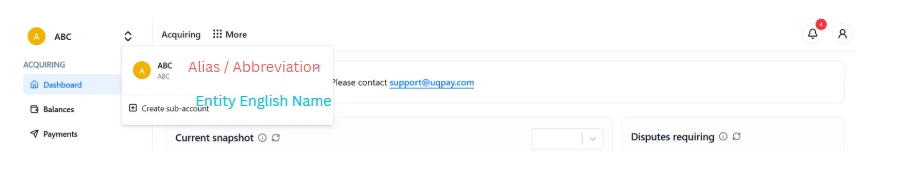
**1. Access Sub-Account Creation**
Click **Create Sub-account** at the top-left corner. This option is only accessible when using your primary account, not when operating a sub-account.
 **2. Navigate to Account Setup**
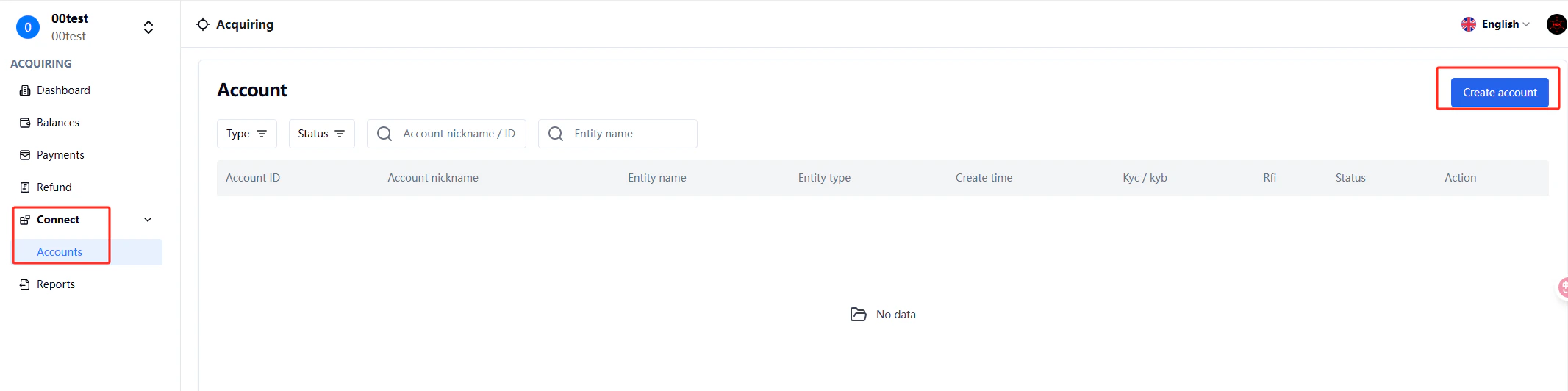
Go to **Connect > Account > Create Account** to begin the setup process.
**2. Navigate to Account Setup**
Go to **Connect > Account > Create Account** to begin the setup process.
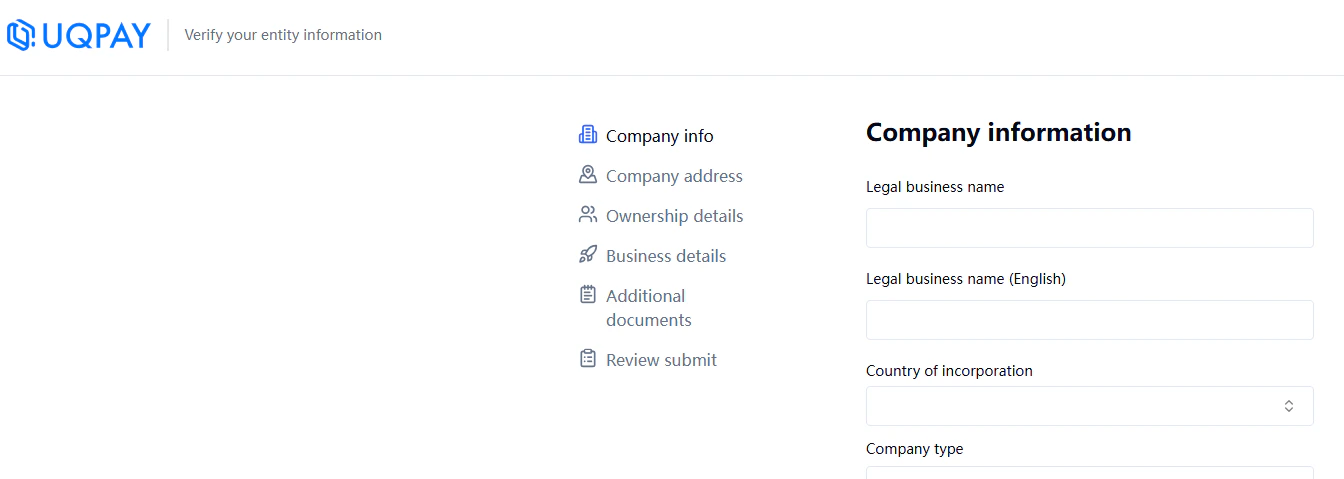
 **3. Complete Onboarding Information**
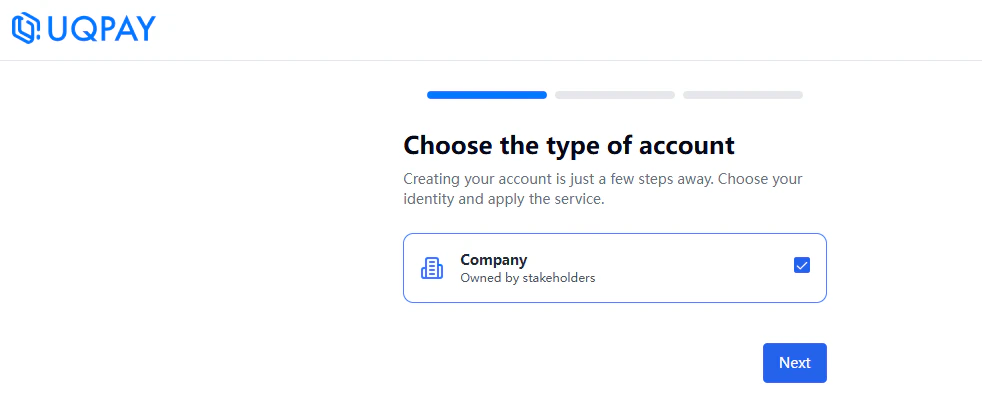
Access the onboarding page and select **Corporate** as your entity type. Fill in the alias and necessary onboarding details.
**3. Complete Onboarding Information**
Access the onboarding page and select **Corporate** as your entity type. Fill in the alias and necessary onboarding details.
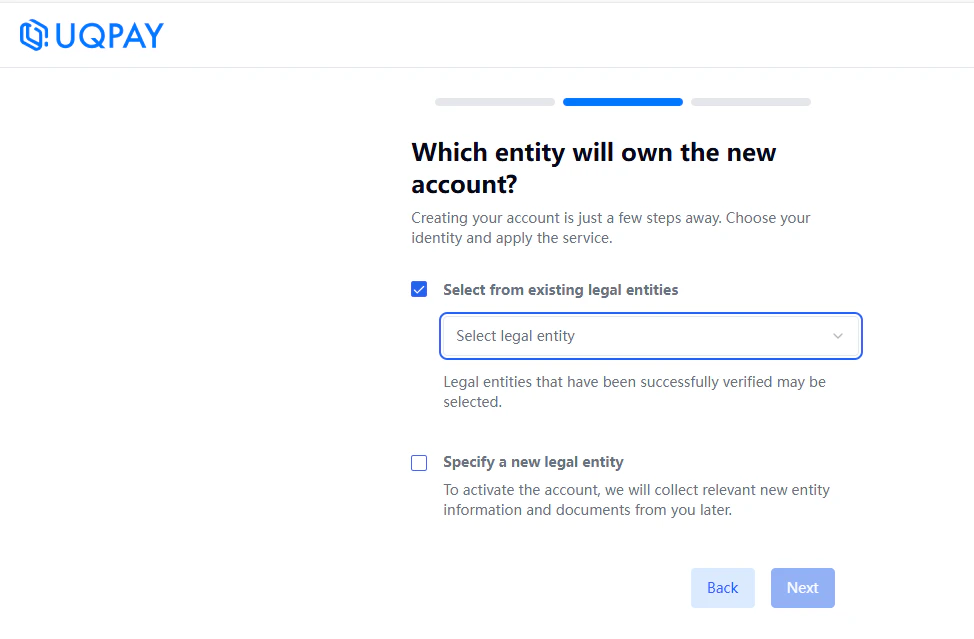
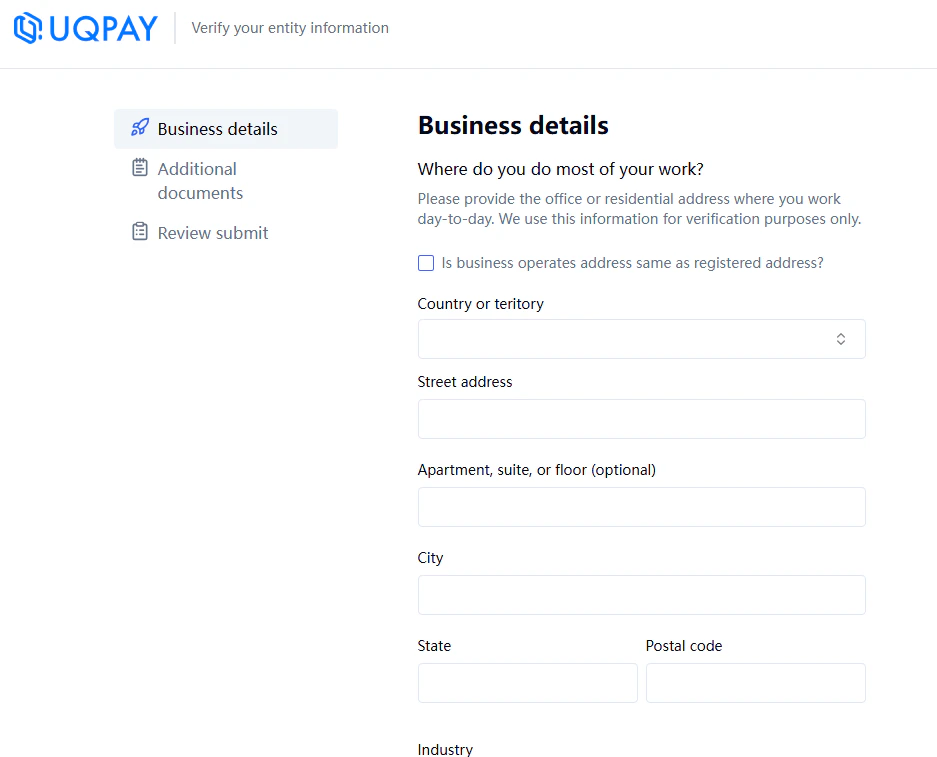
 **4. Specify Legal Entity Details**
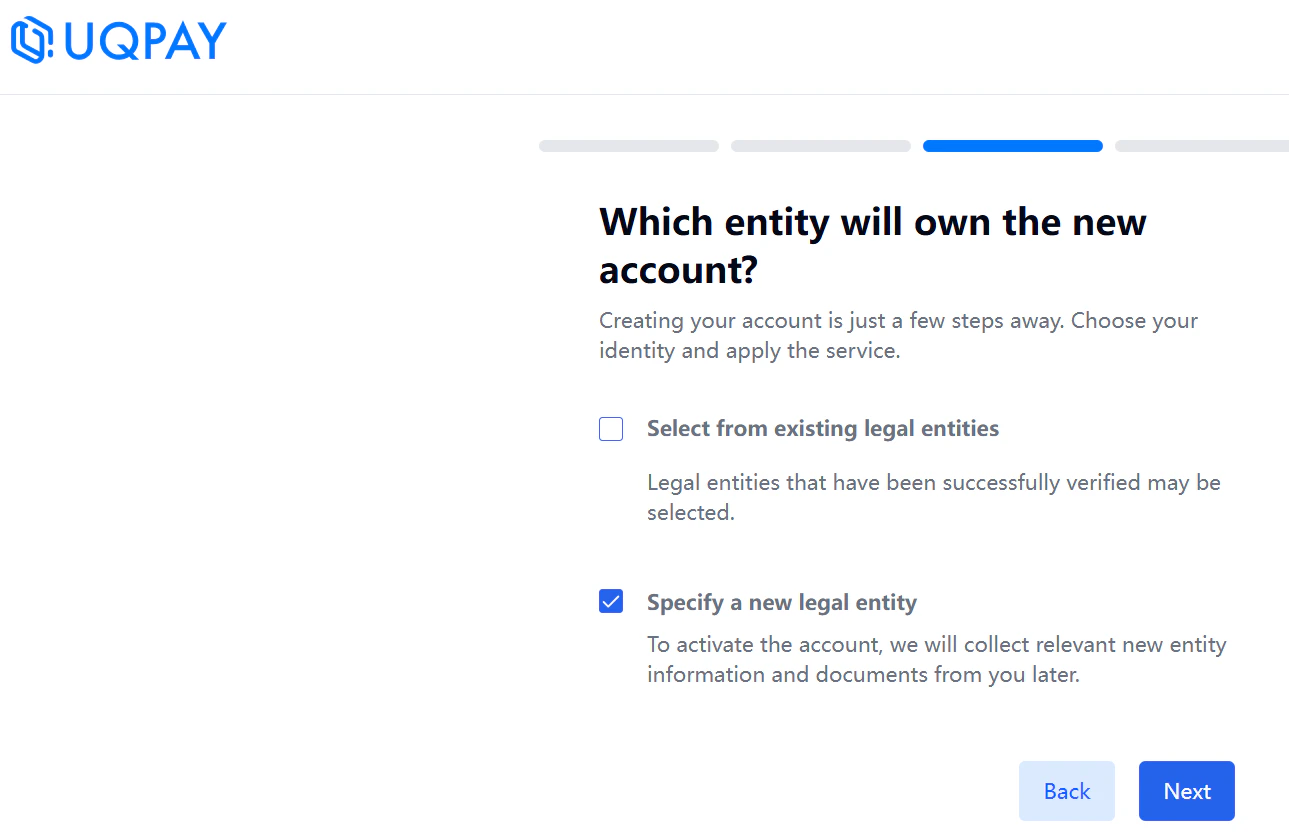
You have two options:
* **New Legal Entity**: Select "Specify a new legal entity," provide the merchant short name, and complete the onboarding with all required information.
* **Existing Legal Entity**: Choose "Select from existing legal entities" to use the UEN workflow. Previously submitted information won't require re-entry.
**4. Specify Legal Entity Details**
You have two options:
* **New Legal Entity**: Select "Specify a new legal entity," provide the merchant short name, and complete the onboarding with all required information.
* **Existing Legal Entity**: Choose "Select from existing legal entities" to use the UEN workflow. Previously submitted information won't require re-entry.
 For assistance, contact the UQPAY Customer Support Team.