> ## Documentation Index
> Fetch the complete documentation index at: https://developers.uqpay.com/llms.txt
> Use this file to discover all available pages before exploring further.
# Reports
> How to generate and download reports from your UQPAY account.
## How to download a report
1. Click **Reports** to open the report section.
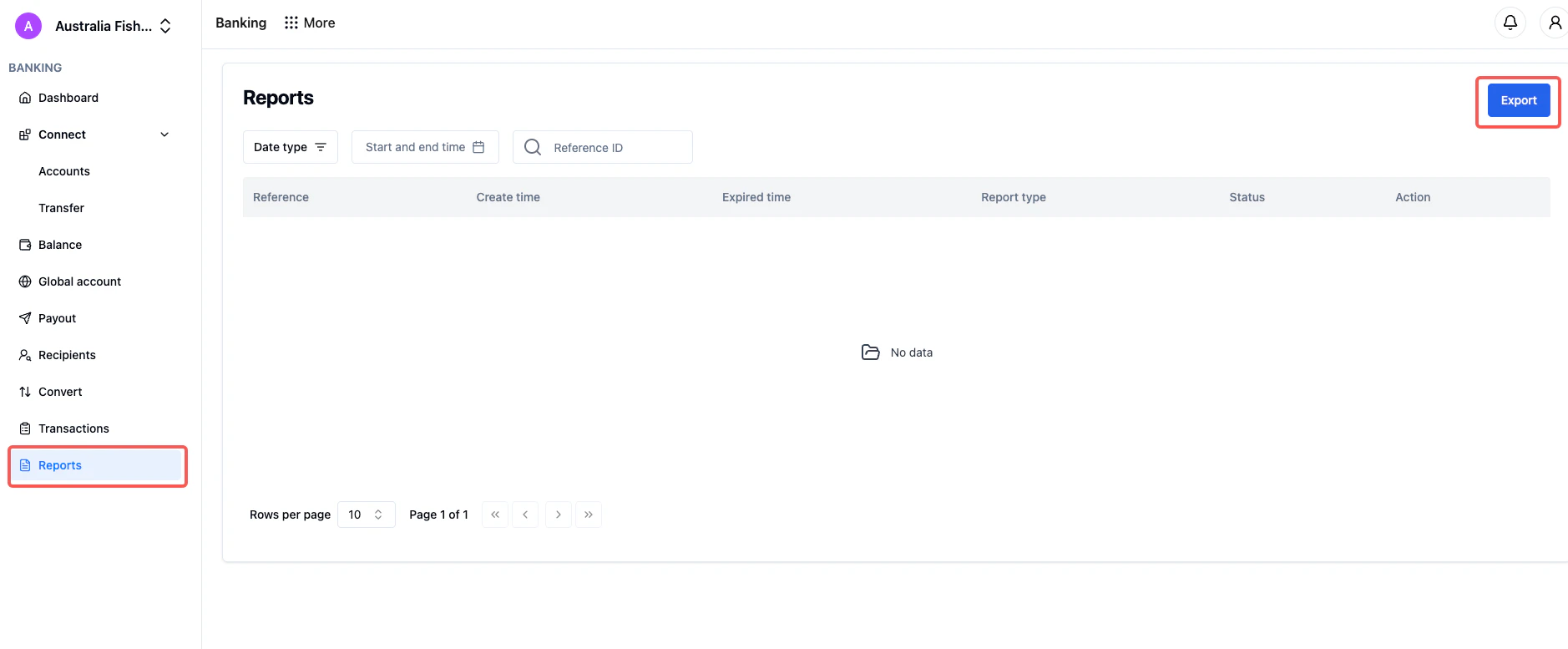 2. Click **Export**, then select:
* Account type
* Report type
* Currency
* Date range
* File format
Optionally, enable "Email me when the report is ready".
2. Click **Export**, then select:
* Account type
* Report type
* Currency
* Date range
* File format
Optionally, enable "Email me when the report is ready".
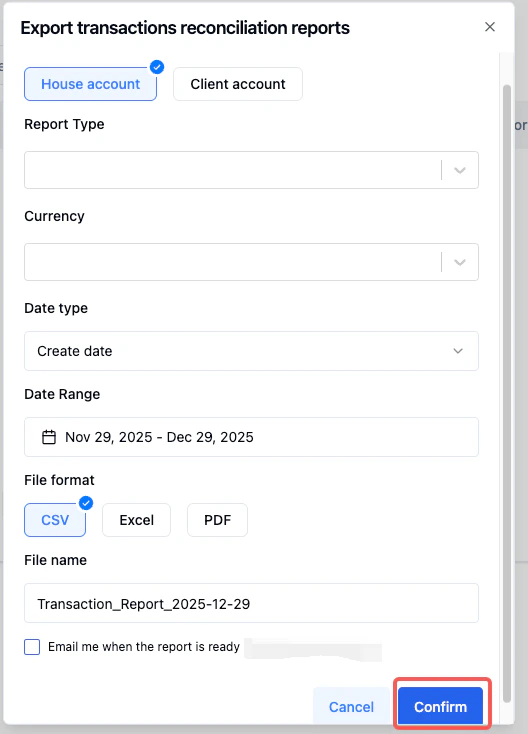 3. Click **Confirm** to generate the report.
4. After generating the report, a corresponding report record will be created under the "Reports" section. Wait a moment, and the report will be available for download.
3. Click **Confirm** to generate the report.
4. After generating the report, a corresponding report record will be created under the "Reports" section. Wait a moment, and the report will be available for download.